WordPress Plugin: a practical guide
In shortRankZoro’s WordPress Plugin connects a WordPress site with RankZoro for read-only SEO analysis, reviewed content proposals, internal-link work, WooCommerce checks and optional publishing controls. This guide explains installation, secure pairing, the SEO & Store Workbench, proposal review, diagnostics, scheduling and a repeatable workflow for maintaining a site without giving automation more authority than intended.
Inside WordPress Plugin
How do you install the WordPress Plugin?
Download the RankZoro WordPress Plugin ZIP and install it from WordPress Admin → Plugins → Add New → Upload Plugin, or upload the plugin folder to wp-content/plugins and activate it. The supplied download supports WordPress 5.6 or later and PHP 7.4 or later. Administrator access is required for installation, connection approval and the SEO & Store Workbench. Before updating an existing installation, use the new plugin files without deleting the current plugin settings. The supported workbench build is designed to update an existing RankZoro installation while preserving its connection-related data.
After activation, open the RankZoro menu in the WordPress administrator area. The plugin provides the bridge between the site and your RankZoro account, while the Workbench provides the site-side interface for inspecting posts, pages and products. A connection is not the same as permission to edit. You can begin with read-only analysis, review findings and prepare proposals without allowing RankZoro to change live content. This separation is useful when a site owner wants research and editorial preparation to happen first, with publishing decisions retained for a later step.
If the plugin is already installed, update it rather than removing it. Deleting settings can remove connection information and local configuration that should remain intact. After activation or updating, confirm that WordPress can serve the site over HTTPS and that your security, caching or firewall tools do not block the plugin’s RankZoro REST requests. The plugin’s connection process depends on the exact public WordPress installation URL, including a subdirectory when the site is installed below the domain root.
What is the recommended way to connect the site?
The recommended route is the read-only approval flow. In RankZoro, open CMS Connections, add a WordPress Plugin connection and enter the exact HTTPS installation URL shown in the plugin’s manual connection details. If WordPress is installed at an address such as a domain followed by a subdirectory, include that subdirectory exactly. Start the approval request, open the approval link and sign in to WordPress as an administrator. Review the named workspace and exact site before choosing Approve read-only connection.
The approval is short-lived: it expires after ten minutes and can be used only once. Starting another request invalidates an earlier pending request for that workspace. Keep RankZoro open until it confirms Connected. If a login redirect causes the approval link to lose its short-lived secret, return to RankZoro and open the approval link again rather than trying to reconstruct it. Canceling the approval leaves the site unchanged. If the site already has an account connection, it is not silently reassigned, and existing connections and schedules remain untouched.
A successful pairing exchanges account and site keys server-to-server over HTTPS. The pairing interface does not show those keys and does not place them in the approval link. Pairing creates a read-only connection: RankZoro can read the site for analysis, but pairing alone does not enable editing, publishing, scheduling or Autopilot. If approval fails, check both the RankZoro and WordPress screens before retrying. A consumed approval is rejected instead of revealing credentials again. Security plugins and hosting firewalls may need to allow the RankZoro REST request used to verify the approval.
When should you use manual connection details?
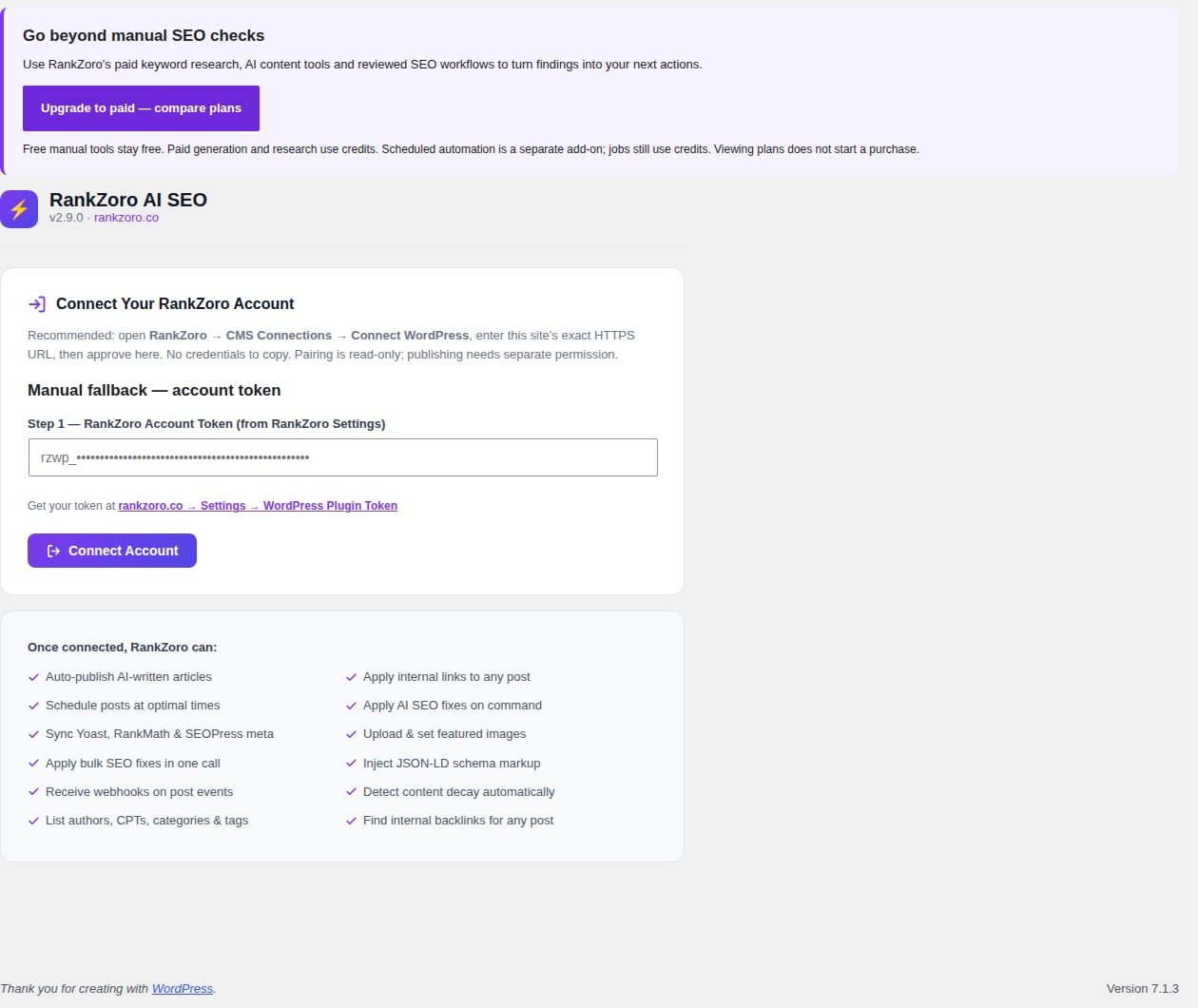
Manual connection is a fallback for older plugin versions or environments where the approval endpoints are blocked. In RankZoro, open Settings, expand Manual fallback and existing account tokens, generate an account token and copy it into WordPress → RankZoro under Manual fallback — account token. Connect the account in WordPress, then copy the WordPress site API key shown on the connected screen. In RankZoro, choose CMS Connections → Add Connection → WordPress → Plugin, enter the exact site URL and enter the site API key, then test and save the connection.
The account token and the WordPress site API key are different credentials. Treat both as private: do not put them in chat, support tickets, approval links or screenshots. The legacy manual key grants write access, unlike read-only pairing, so use this route only when you deliberately want that level of access. If your goal is to inspect content and prepare proposals without making site changes, the approval flow is the safer starting point.
For a paired site, publishing permission is a separate WordPress setting. Open WordPress → RankZoro and enable Allow changes and publishing from RankZoro only when the site owner wants requested RankZoro edits, media uploads, scheduling or publishing to be possible. The permission can be disabled later. It does not automatically edit products, subscribe the site to automation or activate Autopilot. Autopilot has its own setup and should be treated as a separate decision from ordinary pairing.
Where do you inspect posts, pages and products?
Open RankZoro → SEO & Store Workbench after the site is connected. The Workbench is organized into Editor & Fix Centre, Catalogue, Proposal Queue and Growth & Diagnostics. An administrator is required to use the main Workbench. You can also open a resource from the RankZoro Workbench box in a post, page or WooCommerce product editor. The editor link takes you to the relevant resource, which is useful when a content editor is already working on a specific page.
Editor & Fix Centre is the place to inspect content and metadata before deciding what to change. Its checks cover content, metadata, image alt text, placeholders, freshness and public-render checks. The preflight control repeats those checks for a resource. It does not automatically stop WordPress’s native Publish button, so treat preflight as a review step rather than a publishing lock. In the block editor, RankZoro’s optional pre-publish panel reminds you that preflight has not run automatically and provides a route to open the Workbench.
Catalogue is suited to site-wide review. It can browse posts, pages, WooCommerce products, variations and product categories, and search by title or exact SKU. Variations can be inspected, but proposals target the parent product rather than creating duplicate pages for every variation. This distinction helps keep product work attached to the canonical product resource. A practical starting point is to inspect a small set of representative pages, products and categories, compare the findings with your editorial priorities, then expand the review instead of treating every suggestion as an instruction.
How do proposals work before anything is applied?
The Proposal Queue turns selected findings into reviewable drafts. Available proposal types include SEO metadata and title work, content refresh, internal links, review-based FAQs and category guidance. You can queue up to 25 resources, then explicitly confirm generation at 30 credits per item. Each queued item has its own status and error state, so one failed resource does not hide the result of another. A repeated attempt for the same cloud request reuses its result rather than charging again, and failed paid generation is refunded to its original credit pool.
A proposal is not a live edit. Open the generated result and compare the exact before and after values. Check the wording against the page’s purpose, factual claims, brand voice, product details and layout. Reviews are customer feedback, not verified product specifications, so a review-based FAQ or category suggestion still needs a person to confirm what is true. Model output is a draft for editorial review, not an authority that can replace product knowledge or publishing judgment.
When you approve a proposal, RankZoro applies it only through the reviewed workflow and returns the resulting state for inspection. A newer merchant edit invalidates an older proposal, preventing stale content from overwriting current work. Restore is also a deliberate action: it requires separate confirmation and will refuse to overwrite newer edits. Older proposals can be loaded in the queue, which is helpful when an editorial team needs to revisit a previous draft without treating it as automatically current.
What kinds of content and SEO work can you perform?
Content refresh, internal-link and category-guidance proposals are supplementary additions rather than destructive rewrites of an article. Existing builder and block content remains in place. Review the proposed additions in context, especially headings, calls to action, product references and spacing, because a technically valid addition may still need editorial adjustment. FAQ proposals add visible content; this workflow does not add competing FAQ schema automatically. Apply a proposal only after checking that the new material serves readers and does not duplicate an existing section.
Internal-link work is useful when research shows that related pages are difficult to discover from one another. Start by reviewing the target page and the proposed source or destination context. Check that the linked page is relevant, that anchor wording reads naturally and that the link does not compete with a more important navigation path. The plugin can also inspect backlinks within the site, helping you see which published posts link to a given resource. The software performs the requested reviewed operation; it does not replace the decision about whether a link is editorially appropriate.
Supported post metadata includes Rank Math, Yoast and SEOPress fields. Use the fields owned by the active supported SEO plugin. Category metadata is supported for Rank Math and SEOPress. Yoast’s separate taxonomy storage and AIOSEO metadata are deliberately not modified, while content proposals remain available. If no supported plugin owns a field, the plugin’s native title and description fallback can be used where applicable. Confirm which plugin is active before reviewing metadata so that you know where an applied value should appear.
How can WooCommerce and public-page checks support store work?
Catalogue includes WooCommerce products, variations and product categories, making the Workbench useful for store content reviews as well as ordinary publishing. Product proposals can address metadata, refresh text, internal links, review-based FAQs and category guidance. They do not change prices, inventory, orders, product relationships or canonical URLs. A variation can be inspected, but the proposal is directed at its parent product. This prevents a review workflow from creating duplicate variation pages simply because a variation was selected for inspection.
Schema checks inspect JSON-LD observed in the public HTML, invalid JSON, potentially duplicate Product or FAQPage entities and observable single-product differences involving SKU, offer price, currency or availability. A duplicate count is a reason to inspect the page and its identifiers, not an instruction to delete valid schema. If a public read fails, the result is shown as unavailable rather than as a clean bill of health. That distinction matters: absence of evidence from a failed read should not be interpreted as evidence that the page is correct.
Feed diagnostics inspect the first 50 published products for catalogue-readiness issues such as missing prices, images, descriptions or SKUs where applicable. This is a site-side diagnostic, not a live Merchant Center connection and not proof that a feed has been accepted. Use the findings alongside the store’s product records and any separate merchant tools. The plugin can also explicitly request an IndexNow notification for a public URL after verifying the public key document. A receipt confirms the request was handled, not that a search engine indexed the page, and IndexNow is not a submission method for ordinary pages to Google.
What should you check on the public version of a page?
A strong review compares the WordPress editor view with what an anonymous visitor can receive. Use the Workbench’s public-render checks to look for observable problems in the rendered page, then inspect any unavailable result separately. For a product, compare the visible name, price and availability with the structured data observations. For an article, compare the visible title, body sections, links and metadata with the intended editorial version. This is especially important on sites using builders, caching layers or more than one source of schema markup.
The plugin can inspect JSON-LD and report potentially duplicate entities, but a duplicate-looking entity may be valid when it has a distinct purpose or identifier. Examine the page source and the responsible plugin or theme before changing schema. Likewise, a robots or indexing decision should be deliberate. For WooCommerce sort, price and attribute-filter query URLs, the plugin provides a control to explicitly opt into noindex. Base shop and category URLs and canonical tags remain untouched. Core WordPress, Rank Math and Yoast robots hooks are supported; with other SEO plugins, verify the final output yourself.
Use these checks as evidence in a wider measurement workflow. Record the page reviewed, the issue found, the change approved and the date of the next review in your normal editorial or analytics notes. RankZoro does not promise rankings, indexing or feed acceptance. Its role here is to make relevant technical and content observations easier to inspect and to keep reviewed changes connected to the actual WordPress resource.
How do scheduled proposals and growth diagnostics work?
The Growth & Diagnostics area brings together store and content checks and the optional Scheduled Automation add-on. The add-on costs $29.90 per month and unlocks daily or weekly proposal batches limited to 1–5 resources per run. Each generated item still uses credits, and generation never auto-applies product or category changes. A scheduled batch therefore creates work for review; it is not permission for unsupervised publishing or automatic product editing.
WordPress cron is visitor-driven, so a quiet site may run a scheduled task later than its nominal time. If predictable timing matters, configure a host or system invocation of WordPress cron. Disabled or revoked subscriptions stop new scheduled generation. These controls make it possible to use automation for regular proposal preparation while retaining a human review stage. They do not turn a read-only pairing into a write connection, and they do not activate Autopilot.
A sensible use case is an editorial team that wants a small weekly review list rather than a large unsorted backlog. Choose a narrow resource set, inspect each generated proposal, confirm that it is factually accurate and appropriate for the page, then apply only approved items when the site’s write permission allows it. For a store, separate content maintenance from commercial truth: use proposals for descriptions, internal links or guidance, but verify price, stock and offer details in WooCommerce because the AI proposal does not change those values.
What is a practical repeat workflow for a WordPress site?
Begin with access and scope. Confirm the plugin version and WordPress requirements, connect the exact HTTPS site through read-only approval, and decide which workspace and site should be reviewed. Select a focused group of resources from Catalogue: for example, an illustrative fictional business called Cedar & Finch Home, which sells handmade storage products. The team might begin with three product pages, one category and two buying-guide articles rather than generating proposals for the whole site at once.
Next, inspect before generating. Run Editor & Fix Centre checks, review metadata ownership, examine public-render findings and note any unavailable results. For Cedar & Finch Home, the team could compare a product’s visible dimensions and material description with its proposed refresh, check whether an internal link leads to the correct buying guide and inspect whether Product JSON-LD reflects the visible price and availability. The team should not treat customer reviews as verified specifications, and it should not approve copy that introduces claims absent from the product record.
Then queue only worthwhile proposals, confirm generation deliberately, and review each before applying it. Record why the change was accepted, rejected or returned for editing. After applying an approved change, inspect the saved result and the public page again. If a merchant edits the resource before approval, reload or regenerate because the previous proposal is invalidated. Finish with a small measurement loop: compare later editorial notes, analytics observations or content-maintenance priorities with the original issue list. Repeat the cycle on a schedule that fits the site, while keeping publishing permission disabled whenever the team wants analysis without live changes.
Frequently asked questions
Does connecting the plugin automatically let RankZoro publish?
No. The recommended pairing creates a read-only connection. Editing, publishing and scheduling require the separate WordPress permission Allow changes and publishing from RankZoro. Autopilot requires its own setup, and pairing alone does not activate it.
What happens if an approval link expires?
Approval links expire after ten minutes and can be used once. Return to RankZoro and start a new approval. Starting a new request invalidates an earlier pending request, and an already consumed approval cannot be reused.
Can I disable publishing permission later?
Yes. The site owner can disable the paired write permission from WordPress → RankZoro. Disabling it prevents requested RankZoro changes and publishing while leaving the connection available for read-only work.
Does the plugin change product prices or inventory?
No. AI proposals do not change prices, inventory, orders, product relationships or canonical URLs. Product content proposals still require factual and editorial review before any supported content change is applied.
Which SEO plugins can the Workbench update?
Rank Math, Yoast and SEOPress post metadata are supported. Category metadata is supported for Rank Math and SEOPress. Yoast’s separate taxonomy storage and AIOSEO metadata are not modified, and content proposals remain available.
Does a preflight check block WordPress publishing?
No. Preflight repeats the Workbench checks but does not automatically block WordPress’s native Publish button. Treat it as an optional review step before publishing.
Does an IndexNow receipt prove indexing?
No. The plugin verifies the public key document and can request an IndexNow notification, but a response receipt is not proof of indexing. IndexNow also does not submit ordinary pages to Google.
Can scheduled proposal generation publish product changes automatically?
No. Scheduled generation creates proposals for review and does not auto-apply product or category changes. Each generated item still uses credits, and scheduled automation is separate from the site’s publishing permission.
Keep going
Put WordPress Plugin to work
Use the WordPress Plugin workflow with the inputs and limitations explained above. Review any generated suggestions before acting.