Chrome Extension: a practical guide
In shortRankZoro Chrome Extension is a local, overlay-based SEO and GEO assistant for inspecting ordinary public webpages in Chrome. It brings page evidence, content checks, links, images, schema, social metadata, technical observations, search research and selected AI-assisted workflows into one review panel. Install it as an unpacked extension, inspect a page without an account, and connect only when a separate project workflow is needed.
Inside Chrome Extension
What is the RankZoro Chrome Extension?
The extension opens an on-page RankZoro overlay on a normal HTTP or HTTPS webpage and inspects the page you are currently viewing. It is designed for practical review rather than background surveillance: you choose when to open it, which page to inspect and which optional checks to run. The first inspection is local, so the extension can examine rendered headings, visible text, links, images, structured data, metadata and other page signals without requiring a RankZoro account or purchase.
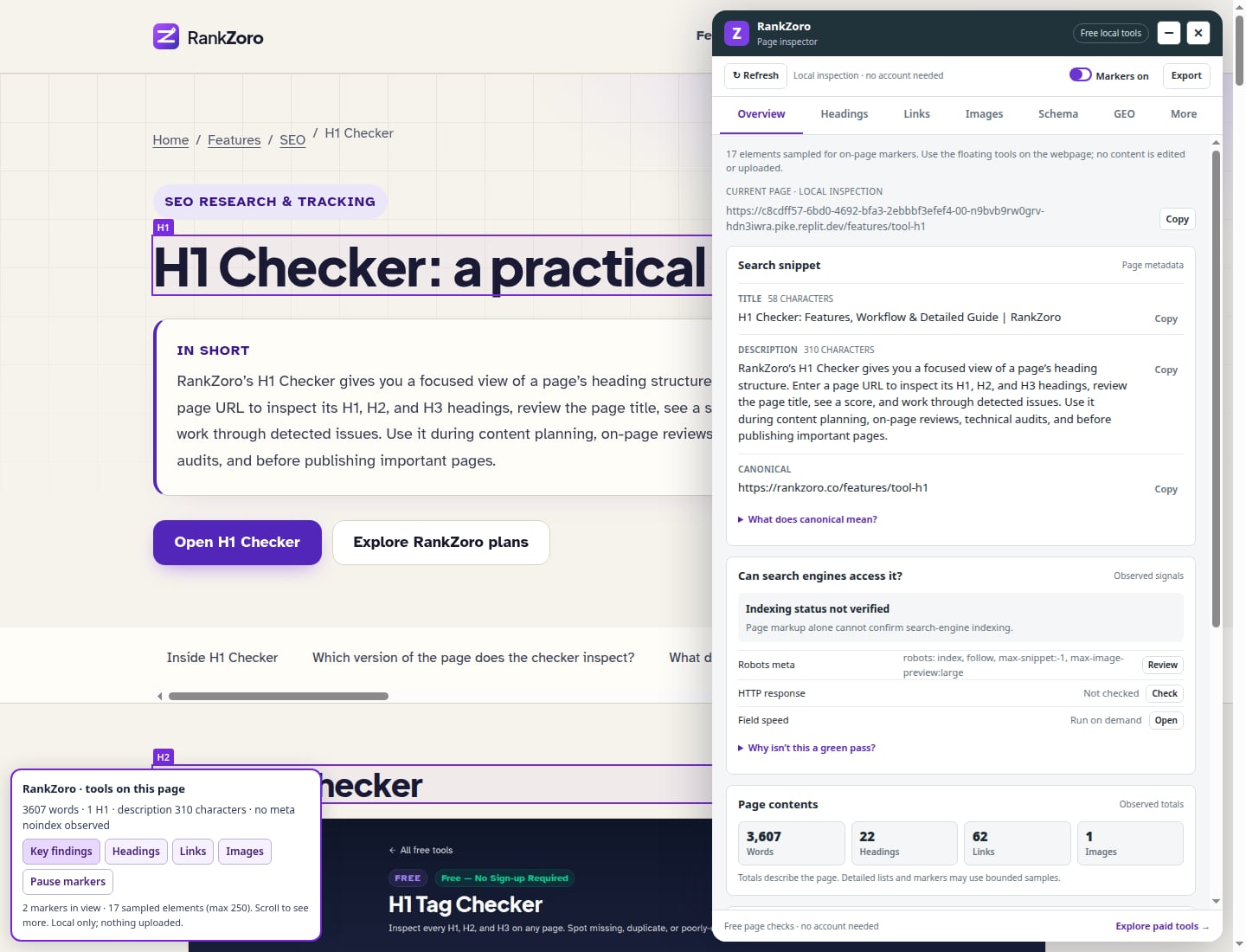
The panel is organized into areas including Overview, Content, Links, Images, Schema, Social & language, Technical, Search & GEO, Free AI & research and Compare. A tool finder and plain-language quick tasks help you locate a check without needing to know every SEO term. You can resize the overlay from its left edge, minimize it or close it. The suggested keyboard shortcut is Ctrl+Shift+Y, although Chrome lets you assign another shortcut if that combination conflicts with an existing command.
This is an inspection and decision-support tool, not an automatic crawler, ranking tracker or publishing system. It does not promise that a page will rank, qualify for a rich result or receive citations from an AI system. Its local observations describe what the extension can see in the current browser page. Network checks, research services and connected editing workflows are separate actions with their own permissions, confirmations and limitations.
How do you install it and run your first inspection?
Download the extension ZIP and extract it into a normal folder. The folder you select in Chrome must contain manifest.json directly, rather than another nested folder containing the actual files. Open chrome://extensions, enable Developer mode, choose Load unpacked and select the extracted extension folder. If you already installed an older unpacked copy, replace its files and use Reload on the RankZoro extension card. Refresh webpages that were open while the older version was active.
After installation, use Chrome’s puzzle icon to pin RankZoro if you want quicker access. Open an ordinary public webpage, click the RankZoro toolbar icon and choose the inspection action shown by the extension. The overlay opens on that tab and begins a local inspection. No token, account or payment is required for the core page checks. Chrome settings pages, the Chrome Web Store, protected browser pages, some PDF or document viewers and other restricted surfaces cannot be inspected by a normal extension.
The initial inspection does not mean that every possible check has run. Local analysis is bounded for safety. For example, the extension samples up to 1,000 links, 400 images, 300 headings and 180,000 characters of visible main-content text, while keyword analysis is limited to up to 20,000 words. These boundaries are sampling controls. If a page is unusually large, treat a result as an observed sample and look for a truncation or coverage note before drawing a site-wide conclusion.
What access does the extension need?
Clicking the toolbar icon gives Chrome temporary active-tab access to the page you selected. Opening an unrelated extension page or side panel does not by itself grant access to all websites. This default approach keeps local inspection focused on the page you intentionally opened. The extension does not silently collect browsing history, read cookies or inspect form values during local analysis. Visible main-content extraction excludes hidden content, navigation and footer areas where appropriate, forms, editable drafts and input values.
Some optional actions need more access. Browser-based HTTP checks and scans of additional selected tabs ask for permission for the relevant website or origin. The extension requests access when you choose the action rather than requesting every website at once. You can remove an origin grant later in Chrome’s extension settings. If you decline, the local tools remain available. Choosing open tabs also requires optional tab-list access; titles stay local while you select what to scan.
Use care when saving or exporting evidence from a private or authorized page. Local JSON and CSV files may contain page information, and connected captures can include reviewed excerpts. Do not inspect or save customer information, private pages or confidential drafts unless you are authorized to process them. A device token, if you later connect the extension, stays in the extension origin and should not be copied into screenshots or support messages.
How should you use the content and on-page panels?
Start with Overview and Content to establish what the page visibly communicates. The extension reports the title and description, heading structure from H1 through H6, word count, reading measures and frequent one-to-four-word phrases. It can show whether important phrases appear in the title, description or H1, but it does not invent search volume, recommend an ideal keyword density or convert frequency into a ranking score. Use the phrase view to notice repetition, missing topic language or a mismatch between the page’s stated subject and its visible copy.
Visible text is gathered from the main content area when one is available, with hidden text, form values and editable drafts excluded. This makes the result useful for reviewing what a reader can encounter, but it is not a complete semantic or accessibility interpretation of every DOM node. A long page may be sampled or truncated. If the page is an application, a client-rendered interface or a page with unusual layout, compare the panel’s evidence with the actual screen before treating a missing item as a defect.
The extension can prepare snippet drafts and local before-and-after comparisons. These are review aids: it does not silently rewrite the page. Highlighting an H1 region or images with missing alt attributes draws temporary outlines around up to 30 visible regions without changing underlying content or styles. An empty alt attribute may correctly indicate a decorative image, so distinguish decorative images from informative images before making edits. Clear highlights after review and re-run them if the layout changes.
Which technical checks are available?
The Technical area combines local observations with optional browser checks. It can review canonical and robots declarations, language and viewport information, response headers and redirect behavior. An HTTP check requests the inspected page without cookies and can follow at most eight same-origin redirects. Cross-origin redirects are displayed but not followed, unsafe private targets are blocked, and the result is an unauthenticated browser request. A firewall, login, CDN or page-specific rule may produce a response different from what a search crawler sees.
Crawler access and rendering is a policy simulation that compares bounded anonymous raw HTML with the rendered page and examines source metadata, X-Robots-Tag, canonical information and sampled robots decisions for selected search and AI agents. It requires explicit site permission. Use it to identify a possible difference between source and rendered evidence or a restrictive directive, not to claim that a real crawler visited the page, verified JavaScript rendering or confirmed indexing.
Device preview opens the public query-free page in a browser window at mobile, tablet or desktop width. This is actual window resizing, not touch, mobile-user-agent, device hardware or network emulation. Speed reporting can request field measurements for a public URL after you explicitly share it with the account-free endpoint. Results may include p75 loading, interaction and layout-shift measures, collection dates and URL or origin scope. Missing traffic coverage remains unavailable; the extension does not fabricate a score for a page without data.
How do Search & GEO tools differ from rank tracking?
Search & GEO tools work with observations available in your current browser or with a separately confirmed research request. For a loaded search page, the extension can capture a bounded sample of organic results, displayed order, available snippets, certain visible ad, local and video blocks, supported AI Overview text or citation anchors and visible People Also Ask questions. Only answers you have expanded are captured. Unsupported or missing layouts are reported as not observed or unsupported, rather than being treated as proof that no feature exists.
A browser result is not universal rank tracking. Country, language, device, personalization, layout and search timing can affect what you see. Search results and answer features are observations from the current browser, not an independent guarantee of a page’s position or visibility. The extension does not automatically run searches or expand every question. It also does not read browser history or search-form values. If you use a Google query for a connected capture, the query has a separate local preview and an explicit opt-in step.
Provider-backed research is a separate, confirmed action. Depending on the selected workflow, it can return keyword ideas, a search-results sample or referring-domain ideas, with missing metrics shown as unavailable rather than guessed. You confirm the seed, domain, market and language before the request. Research results are dated independent observations, not the same as the personal search page in your browser. Use them to generate questions, briefs or investigation paths, then validate important conclusions with your own business context.
What can the Free AI and Business Profile tools do?
The Business Profile assistant supports local drafting for descriptions, posts, review-reply templates, service or product descriptions, FAQs and category planning. Supply your own verified facts and instructions. You can copy or download a draft, or use a local draft in a supported Google editor. Preparing an optional AI polish does not send the text by itself. The workflow is intended to help you review wording while keeping factual responsibility and final publication with you.
When you are viewing a supported English-labelled description, post, service or product description, or review-reply editor in Google Search, Maps or the business management site, the extension can scan visible supported fields. You confirm the exact business and your management rights, select a field, review the before-and-after text and approve insertion. It never clicks Save, Publish or Reply, never calls Google write APIs and never reads passwords or cookies. If the editor closes, publication is unconfirmed and remains under the site’s own controls.
The insertion workflow preserves newer edits and changed documents rather than overwriting them. Undo restores plain text only while the same editor remains open and unchanged. Categories, business name, address, phone, hours and verification are outside this workflow. Use the tool as a reviewed handoff: check every fact, tone and claim, then use the host platform’s own save process if you decide the content is ready.
When should you save evidence or connect a project?
For many tasks, you can remain anonymous. Local diagnostics, link, image and heading evidence, social and structured-data observations, JSON and CSV exports, snippet drafts, local comparisons and HTTP observations do not require credits or a RankZoro account. The baseline comparison is memory-only and clears when the panel closes or disconnects. This is useful for reviewing a draft page against its current version during one working session.
A connected project is appropriate when you need project-scoped captures, saved history or an approved workflow with the existing RankZoro workspace. First update the relevant RankZoro backend and WordPress connection if you intend to use connected CMS work. In SEO Workbench, select a project, create a device token and copy it once. Paste it into the extension, inspect an ordinary page and review the extracted excerpt before confirming Save page to project.
The connected workflow does not directly edit every technical issue. It can bring a saved capture into an existing title, description or content review path, where a proposal and explicit approval remain required. Alt text, canonicals, robots and rendering fixes are manual-only in this release. Saved URLs remove query parameters and fragments for privacy. Query-bearing captures cannot certify a CMS change; use the public canonical URL when comparing or observing an approved change.
How can you compare pages and selected tabs safely?
To compare multiple pages, choose the open-tab workflow and grant tab-list access when Chrome asks. Select a page, request only that origin, activate it and inspect it. You can keep up to eight local samples and compare literal heading or question coverage and evidence-link samples. Review each sample before saving. Cancellation clears the local queue, but it does not remove captures already saved to a project. A failure on one site does not prevent you from examining another.
For page history, load saved captures for the exact normalized URL and choose an earlier capture. You can also recapture the active page and compare it with a previous version. Review the new excerpt before uploading it. The extension keeps prior captures, but a capture is not a complete crawl or a complete visibility audit. Bounded text and heading samples, personalization, authentication, localization, timing differences and older captures without completeness information can all limit the comparison.
The anonymous public HTML comparison is another deliberate action. It needs a saved capture and separate confirmation, fetches public HTTPS initial HTML without browser cookies or extension tokens, and does not follow private targets. It is limited in time and response size. The result compares observed title, description, canonical, H1s, headings and text. A difference may reveal a useful investigation lead, but it does not prove that a search engine cannot render or index the page.
What is a sensible repeat workflow for real projects?
Begin with a page inventory and a clear question. For a fictional business such as Northstar Bicycle Repair, an editor might inspect the service page to ask whether the title, H1, visible copy, local business details and appointment links agree. Open the page, run the local inspection and review Overview, Content, Links, Images, Schema and Social & language before reaching for research. Record only the observations that matter to the immediate decision.
Next, validate the most important evidence. Highlight the H1 and relevant images, inspect redirects or headers if a page-access concern exists, and use the technical rendering or device-width tools when the page behaves differently in source and browser view. If the page represents a business profile, use the assistant to draft alternatives from verified facts, then review them without assuming that generated wording is correct. If search visibility is the question, inspect a loaded result page or make a separate confirmed research request rather than treating a local phrase count as demand evidence.
Finally, make changes in the appropriate system, then revisit the public page. Compare a local baseline when working in the same session, or save a reviewed capture when a connected project needs history. After a CMS change, recapture the exact public URL and observe the result as a dated browser observation. Keep the evidence, decision and limitation together. This sequence—inspect, validate, propose, approve, recapture and observe—keeps the extension useful without confusing a browser check with a universal search or publishing outcome.
What should you keep in mind when interpreting results?
The extension reports evidence it can observe, not facts it cannot access. It does not inspect Chrome settings, measure proprietary domain metrics, establish global rankings or calculate a genuine AI citation probability from page formatting. A local readiness suggestion is not an official GEO score. A visible review sample does not verify the reviewer, ownership or the complete review population. A search sample does not replace a rank-tracking system, and a referring-domain sample does not supply invented authority metrics.
Some tools have explicit caps or sampling bounds even when local use is described as unlimited. Local diagnostics, exports, comparisons, saved URLs, highlighting and preview editing have no RankZoro usage quota, but individual scans remain bounded. AI and provider-backed research retain their displayed daily or shared limits, and failed attempts can count. External tools linked from the extension may have separate account or payment requirements. Read the current panel message before confirming a request rather than assuming that every feature has the same allowance.
Use the extension as a focused browser workbench. Keep private exports private, inspect only pages you are authorized to process, and review generated or researched material before using it. When a result says unavailable, unknown, sampled or not observed, preserve that meaning. Those labels help you decide what to test next; they are not hidden failures and should not be rewritten as certainty.
Frequently asked questions
Is the RankZoro Chrome Extension free to use?
Core local inspection works without a RankZoro account, token or purchase. Local checks and exports do not use a RankZoro usage quota. AI and provider-backed research are separate and retain their displayed limits, while some external tools may require their own accounts or payments.
Is this an official Chrome Web Store extension?
No. The supplied package is an unpacked Manifest V3 extension. Install it by extracting the ZIP, enabling Developer mode at chrome://extensions and choosing Load unpacked.
Does the extension automatically change webpages?
No. Local inspection, highlighting and previews do not modify the underlying page. Connected content workflows require review and explicit approval. Business Profile assistance inserts approved text into a supported open editor but does not save, publish or reply.
Can it crawl an entire website?
No. It inspects the current page and can scan selected open tabs when you deliberately grant access. Checks are bounded samples rather than an unrestricted crawler.
Does a search result position prove my ranking?
No. The extension can observe a bounded result page in the current browser, but location, language, device, personalization and layout can affect what appears. The result is not universal rank tracking.
Can it verify that Google will index or display my page?
No. Crawler, rendering, robots, schema and social checks provide useful observations and approximations. They do not establish indexing, rich-result eligibility, ranking or final platform rendering.
What happens if I connect a project?
A device token lets the extension use optional project-scoped workflows such as saved captures and approved content review. The token remains in the extension origin. To revoke it everywhere, use the connected-device controls in SEO Workbench.
Keep going
Put Chrome Extension to work
Use the Chrome Extension workflow with the inputs and limitations explained above. Review any generated suggestions before acting.