CMS Connections: a practical guide
In shortCMS Connections links RankZoro with supported websites and content platforms so you can work with site content from one workspace. Connect WordPress, Shopify, or another available CMS, choose the appropriate access method, test the connection, and then use the available content controls. WordPress and Shopify connections can also expose practical post, article, product, SEO, linking, image, and scheduling workflows.
Inside CMS Connections
What can CMS Connections help you do?
CMS Connections is the place to connect RankZoro to the websites and publishing systems your team already uses. The connection record identifies the platform, stores a label for easy recognition, and shows whether the connection is currently connected, has an error, or is disconnected. It also records when the connection was last tested. This gives you a practical starting point before you attempt to read or change content.
The available connection types include WordPress, Shopify, Webflow, Webhook, Ghost, Notion, and Wix. The exact controls depend on the platform and connection method. WordPress connections can support reading posts and, when the plugin method is used with the necessary permission, post actions such as internal linking, SEO updates, and scheduling. Shopify connections can expose store blogs, articles, products, article scheduling, featured-image updates, and product SEO optimization.
Think of the tool as a controlled bridge rather than a replacement for your CMS. RankZoro can retrieve content from a connected system and perform the actions that the connection and granted permissions allow. Your site remains the place where the content lives. This distinction is useful for teams that want to review an action in RankZoro while retaining clear control over which site can be read or changed.
How should you choose a connection method?
Start with the platform you need to work with, then select the connection method that matches your intended task. A read-only connection can be appropriate when you want RankZoro to inspect posts or store content without granting publishing capability. If you plan to apply changes, confirm that the method supports the required write permission and that your CMS administrator is comfortable approving it.
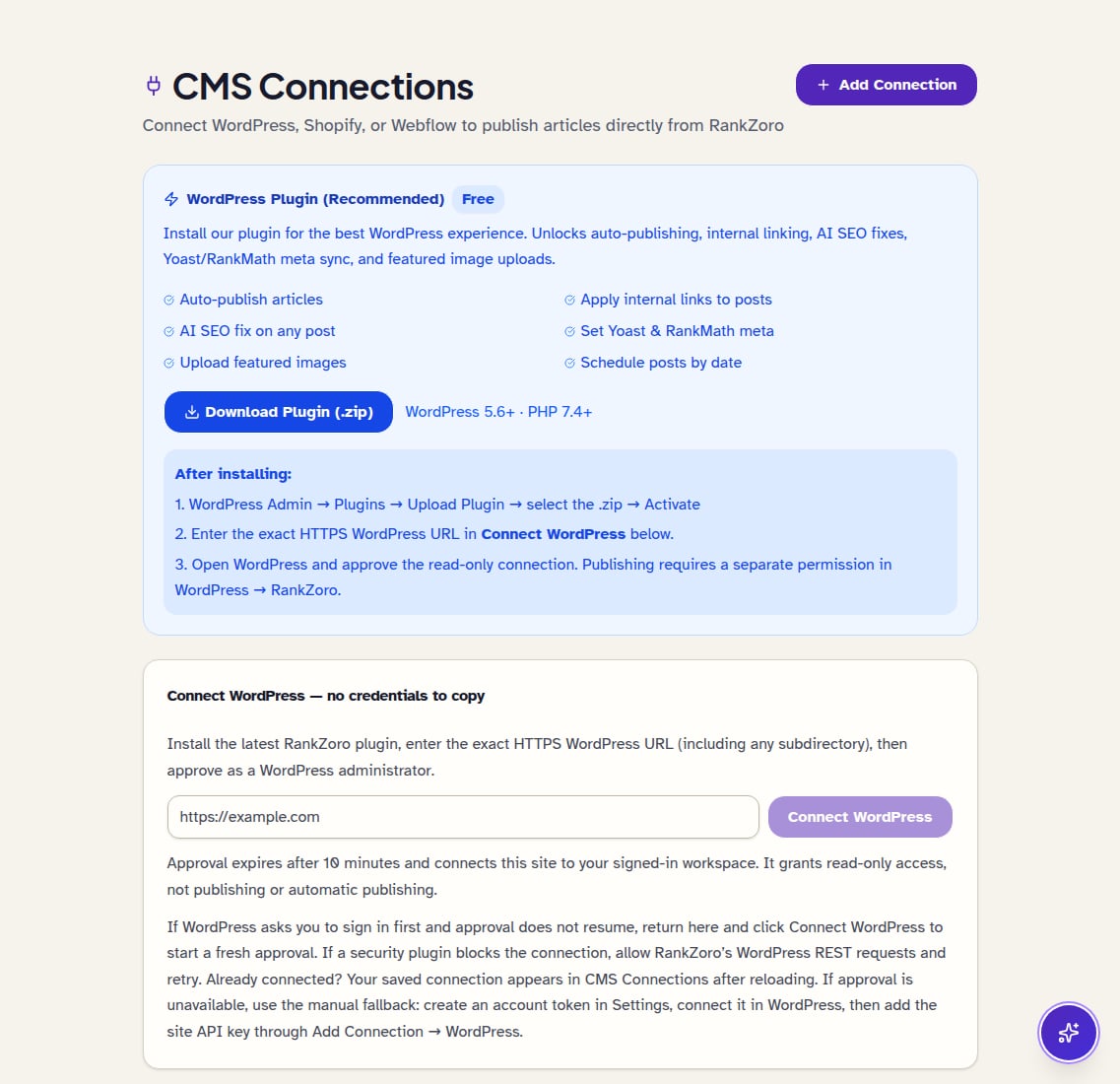
For WordPress, the product specifically recommends the RankZoro plugin for the best experience. The plugin supports auto-publishing articles, applying internal links to posts, applying an AI SEO fix to a post, setting Yoast and RankMath metadata, uploading featured images, and scheduling posts by date. The plugin download panel identifies WordPress 5.6 or later and PHP 7.4 or later as requirements.
For Shopify, two connection paths may be available. The Admin API token path is presented as ready to use and does not require app setup in RankZoro. If the Shopify app credentials are configured for your workspace, an OAuth path is also shown. OAuth sends you through Shopify authorization rather than asking you to copy an API token. Choose the method your store administrator can manage most confidently.
How do you connect WordPress with the plugin?
Download the WordPress plugin from the CMS Connections area, then open WordPress Admin. Use Plugins, Upload Plugin, select the downloaded ZIP file, and activate it. These steps install the connection component on your site; they do not by themselves grant RankZoro permission to read or publish. Keep the WordPress address available because the connection flow asks for the exact HTTPS URL.
Return to the Connect WordPress area and enter the exact HTTPS WordPress URL. Accuracy matters: use the site address configured for WordPress, including the correct domain and protocol. The product then presents an approval flow in WordPress. Approving the initial connection provides read-only access. If your team later needs publishing or other write actions, publishing requires a separate permission in WordPress under RankZoro.
This separation is useful for a staged rollout. A site owner can first approve reading, verify that the correct posts appear, and only then decide whether publishing permission is appropriate. If the post-management area reports that a plugin connection is required, edit the connection and switch it to Plugin mode. That message means the current connection method cannot provide the post controls being requested; it is not a sign that the post itself is invalid.
How do you connect a Shopify store?
For the Admin API token route, begin by entering the store domain, such as the illustrative fictional business northstar-outfitters.myshopify.com, and open Shopify Admin. In the Shopify admin development-app area, create an app, give it a name, open API scopes, and enable read and write content plus read and write products. Save the scopes, install the app, reveal the token once, and copy the token. The token begins with shpat_.
Then use Add Shopify Connection in RankZoro and provide the store domain and token in the connection form. Treat the token as sensitive access information. Copy it carefully when it is revealed, and avoid placing it in ordinary notes or sending it through an unsecured message. RankZoro can only work within the permissions Shopify grants, so requesting content and product scopes is relevant when you intend to manage both blog material and products.
If OAuth is available, enter the Shopify store domain and choose the one-click connection option. RankZoro redirects you to Shopify so the store can authorize the app directly. This route avoids manually copying an API token. The Shopify panel explains that viewing plans does not start a purchase and does not grant store-write access; authorization and store permissions remain separate decisions.
How should you read connection status?
A Connected status means the saved connection is active according to the most recent available check. An Error status means the connection encountered a problem that needs attention. A Disconnected status means the connection is no longer available for normal use. The connection card also shows the last tested time, which helps you distinguish a recently checked connection from one that has not been verified for a while.
When a connection shows an error, first check the basics that match its platform. For WordPress, confirm the URL is the exact HTTPS address, the plugin is still installed and active, and the required approval has not been removed. For Shopify, verify the store domain, token or authorization, and the scopes needed for the task. Do not assume that a successful connection automatically includes every write permission.
After correcting the underlying issue, use the available test or reconnect control and look at the resulting status before attempting a content action. If the connection is active but a specific content panel still fails, read the message carefully. A missing plugin connection, for example, points to a connection-method issue rather than a general failure of the whole workspace.
What can you do with WordPress posts?
For a compatible WordPress plugin connection, RankZoro loads up to 20 posts in the post-management area. Each listed post can show its title, site URL, status, date, and word count when available. Status labels distinguish published, draft, scheduled, pending, and private content. Select the post title to open the page on the site, or use the available post actions when you are ready to work on that item.
Apply Links asks RankZoro to scan the post and insert relevant internal links from other pages on the site. Internal links are links between pages on the same website; they help readers move to related material. The software reports how many links it applied when the action succeeds. Review the post afterward, especially where wording or context is important, because the action changes the connected content rather than merely preparing a suggestion.
Fix SEO generates and applies an optimized meta title, meta description, and focus keyword, with support for Yoast and RankMath metadata. A meta title is the page title used in search-oriented metadata, a meta description summarizes the page, and a focus keyword is the topic phrase associated with the page. The result identifies what was fixed. Scheduling lets you choose a future date and time, then sends that schedule to WordPress. Pick the time deliberately and confirm the resulting status on the post.
What can you manage in Shopify?
After a Shopify connection is working, the content area loads the store's blogs first. If the store has more than one blog, choose the relevant blog from the selector. The Articles tab then lists articles with their title and whether each one is published or still a draft. This is useful for separating editorial work from product work instead of searching the Shopify admin for each item.
Article actions include applying internal links, applying an SEO fix, scheduling an article, and setting a featured image. The linking action applies internal links to the article and reports the number applied. The SEO action can update the article's SEO information and reports the fields it changed. Scheduling requires a date and time in the future. Setting a featured image requires an image URL and optionally an alt-text value, which is text describing the image for accessibility and context.
The Products tab lists Shopify products and provides a product SEO optimization action. The result identifies the product fields updated and describes the action as SEO and GEO optimization. GEO here refers to optimizing information for generative search and answer experiences as represented by the product workflow; do not treat it as a guaranteed ranking score. Use the result as a record of what the tool changed, then review the product in Shopify for brand accuracy, claims, and merchandising details.
How should you interpret the results?
A successful result confirms that the requested operation was accepted and provides a short description of what happened. For internal links, look for the reported number of links applied. For SEO actions, review the named fields or metadata types that were fixed. For a featured image, the result confirms that the image was set. For scheduling, the confirmation includes the selected date and time. These messages are operational results, not a promise about future search visibility.
An error result explains why the operation did not complete when the connected platform returns a usable message. Commonly, the next step is to check permissions, the selected connection, or the platform record itself. A post that cannot be loaded may indicate that the connection is not using the required WordPress plugin method. A Shopify data error may require checking authorization or the scopes assigned to the store app.
Review changed content in the CMS after a write action. Check that links point to relevant pages, metadata reflects the actual article, product information remains accurate, and an image URL is reachable and appropriate. For scheduling, verify the displayed publication state and date in the CMS. RankZoro executes the requested operation, but editorial judgment still belongs with the person responsible for the site.
How does this fit into content and research work?
CMS Connections is most useful when it follows a clear research and editorial decision. Begin by identifying the page or product that needs attention. Use your existing keyword, content, or site research to decide the topic, audience, search intent, and internal pages that should be connected. Then use the CMS connection to apply a focused change to the selected record rather than making broad edits without a defined purpose.
For an illustrative fictional business, Northstar Outfitters could review a WordPress guide about choosing a waterproof hiking jacket. After deciding which related care guide and size guide genuinely help readers, the team could use Apply Links on that post, inspect the inserted links, and correct any wording that does not fit. If the title and description are unclear, the team could use Fix SEO, then compare the resulting metadata with the article's actual subject before keeping it.
For an illustrative fictional Shopify business, Harbor Street Ceramics could select its store blog, improve an article about choosing a serving bowl, add a relevant featured image with descriptive alt text, and schedule the article for a chosen future date. Its product team could separately use product SEO optimization on a bowl product, then review the updated information for dimensions, materials, care instructions, and brand voice. The connection makes execution easier; it does not replace research or review.
What is a sensible permission-first workflow?
Use the smallest practical permission set at the beginning. For WordPress, connect and approve read-only access first. Confirm that the correct site and posts appear. When the team has a specific publishing or editing need, have the WordPress administrator grant the separate permission required for that work. For Shopify, request the content and product scopes only when those areas are part of the intended workflow.
Assign responsibility before making a change. One person can verify the connection and content identity, another can review proposed editorial decisions, and an authorized site administrator can approve write access where needed. This is especially helpful for a store or publication with several people sharing a workspace. Keep connection labels meaningful, such as “Northstar blog” or “Harbor Street Shopify,” so users can distinguish similar sites before selecting an action.
After each permission change, test the connection and perform a small, clearly understood task. Confirm that the returned record belongs to the intended site. Then continue with the larger content queue. If access is later no longer needed, disconnect or remove the connection through the available connection management controls so the workspace does not retain an unnecessary route to the site.
What repeat routine works well?
A practical routine has five stages: connect, verify, select, act, and review. Connect the relevant CMS using the method appropriate to the work. Verify the status and permissions. Select one post, article, or product with a defined purpose. Run one action at a time, such as applying links or fixing metadata. Review the result in RankZoro and then check the corresponding record in the CMS.
For WordPress, a team might review a group of posts, identify drafts that need publication dates, use Fix SEO on a post with incomplete metadata, and apply links only where related pages genuinely help. For Shopify, the team might choose the correct blog, work through articles, then switch to Products for a separate product review. Keeping articles and products as distinct work queues reduces the chance of applying the wrong kind of action to the wrong record.
Record the reason for important changes in the team's normal editorial notes. Include the page or product, the action taken, the person who reviewed it, and any follow-up needed. If a result reports an error, leave that item for troubleshooting rather than repeatedly submitting the same request. Re-test after fixing the connection, then continue. This method keeps CMS work deliberate and makes it easier to understand what happened when several people share responsibility.
Frequently asked questions
Can I connect more than one CMS?
The CMS Connections area supports connection records for available platform types, including WordPress, Shopify, Webflow, Webhook, Ghost, Notion, and Wix. Use clear labels so similar connections are easy to distinguish, and verify the selected site before performing a write action.
Does connecting WordPress automatically allow publishing?
No. The WordPress plugin approval starts with read-only access. Publishing requires a separate permission in WordPress under RankZoro. Grant it only when the intended workflow requires publishing or other supported write actions.
What should I do if WordPress posts will not load?
Check that the connection uses the Plugin method, the plugin is installed and active, the exact HTTPS URL was entered, and the WordPress approval is still valid. The post-management area specifically identifies when plugin mode is required.
What Shopify permissions are needed?
The Admin API setup instructions identify read and write content and read and write products as the scopes to enable. The necessary scopes depend on whether you intend to work with articles, products, or both.
Can I schedule every type of CMS content?
The supplied workflows specifically support scheduling WordPress posts and Shopify articles. Do not assume that every listed connection type or every content record has the same scheduling control.
Does an SEO fix guarantee better rankings?
No. The action updates supported SEO fields or metadata; it does not guarantee rankings or traffic. Review the resulting title, description, focus keyword, and page content for accuracy and alignment with your broader research.
Keep going
Put CMS Connections to work
Use the CMS Connections workflow with the inputs and limitations explained above. Review any generated suggestions before acting.